
En esta noticia
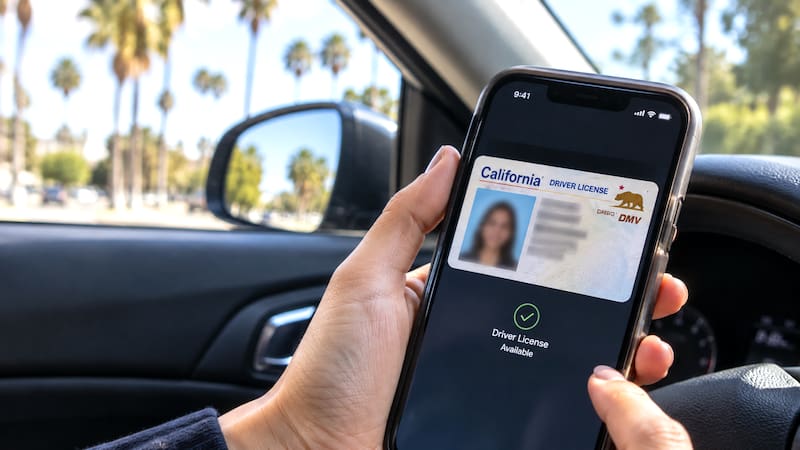
The California Department of Motor Vehicles (DMV) outlines on its official website the three steps drivers must follow to digitize their driver’s license using the official app and the places that accept this format of the document.
Although it is a simple process to carry out, it is important to note that California has a limited quota for mDL processing (mobile driver’s license), which is 60% of licensed drivers.
Official California DMV guidance: how to digitize your driver’s license in 3 steps
One way to get a digital license is through the DMV’s official app, and to download it, it is essential first to meet the technical requirements. For iPhone users, it is available on iPhone XS and later with iOS 17.5, as well as on Apple Watch Series 4 or later or with WatchOS 10 or higher.
Users with any of the devices and operating systems listed above will need to follow the steps below:
- Download the CA DMV app from the Apple App Store or Google Play
- Open the app and sign in to a MyDMV account or create one, providing your ID and the requested information
- Follow the instructions to scan the physical card
The license can also be loaded into Apple Wallet, Google Wallet, and Samsung Wallet, depending on each user’s preference.
It is important to keep the license updated every 30 days by tapping the “Update driver’s license” button.
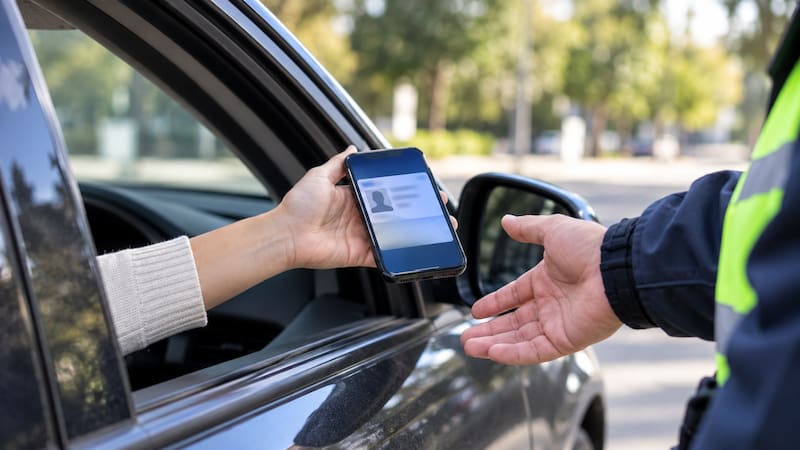
Where California’s digital driver’s license can be used
Authorities say the digital version of the document is accepted, regardless of which wallet or app was used to get it, by:
- TSA at participating airports as acceptable identification
- TruAge to buy age-restricted products
- The official DMV website as a method for quick sign-in
- Selected SSA offices in California, as proof of identity
There are other places that accept this ID, but they vary depending on the wallet or app it is stored in, so the list for each case can be checked here.