
En esta noticia
Android phones can run into unexpected problems: the screen freezes, apps stop responding or the device seems to ignore every command.
At those moments, trying to turn it off the usual way can be difficult, and many users do not know how to get the device working again.
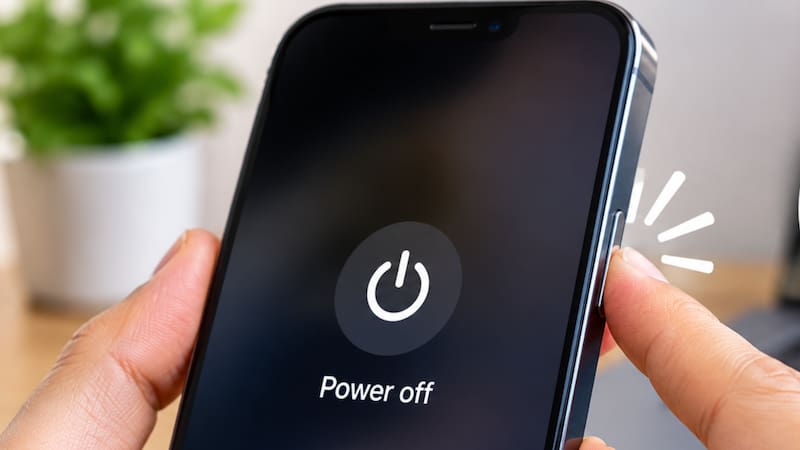
However, there is a simple procedure that can help resolve the problem without downloading apps or heading straight to a repair shop: press and hold the power button for about 60 seconds, an option Google recommends.

What pressing your phone’s power button for 60 seconds does
According to Google’s instructions, holding down the power button for about 60 seconds forces the phone to restart when it is frozen and the screen stays on.
This option is useful when the device stops responding to touch commands, apps freeze or the user cannot access the usual menu to turn it off or restart it.
The procedure is meant to break the lockup and get the system running again. In this way, the phone can return to normal operation without having to turn to more complex options.
It is important to keep in mind that this is not a method for repairing physical damage, battery problems or internal components. Its goal is to try to recover a device that stopped responding because of a system lockup.
How to restart a locked Android phone, step by step

Google recommends a simple procedure to try to recover a phone that remains frozen with the screen on.
The steps are as follows:
- Find the power button: locate the physical key used to turn the device on and off.
- Press and hold it: hold the button down for about 60 seconds without letting go.
- Wait for the restart: let the phone complete the restart process.
- Check that it works: once it turns back on, see whether it responds to touch commands and opens apps normally.
The recommendation is to keep pressing for about one minute. So if the phone does not react after a few seconds, wait until the full time has passed before giving up on the procedure.
What to do if the Android phone still does not respond after restarting
If the phone remains locked after trying the forced restart, Google recommends moving on to other checks to identify the source of the problem.
One of the first steps is to check whether any Android updates are pending. To do this, go into the device settings, select System and look for the software update option. Menu names may vary by manufacturer.
It is also important to check available storage space. According to Google, phones can start having problems when they have less than 10% free storage. In that case, it is important to review which files or apps take up the most space and delete those that are no longer needed.
Another possibility is that a downloaded app is causing the lockup. To identify it, Google recommends trying safe mode, which temporarily disables user-installed apps.
If the problem goes away in that mode, an app may be interfering with the device’s operation.