
En esta noticia
Entering the password manually on the mobile phone is not the only available way when connecting to a WiFi network. Today, there are more practical alternatives to access the internet, as long as the network owner authorizes the connection to be shared.
These new methods make it possible to avoid the typical errors of typing passwords you are not familiar with, thus allowing a much faster connection.

Without a manual password: how to connect to the internet easily and quickly
A simple and extremely popular way to connect to wifi without typing a password is through a QR code.
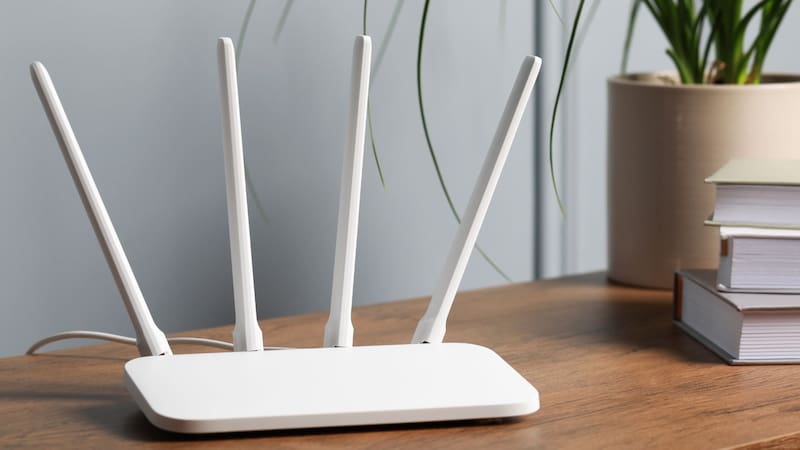
In general, many current modems already include this feature, which allows them to offer a QR code with the network name and the configured password.
This option, which is usually available on the bottom or front of the device, can be used as follows
- Open the phone camera
- Scan the router’s QR code
- Confirm the connection when prompted
Another technique to access WiFi without a password
Also, if someone else is already connected to the WiFi network you want to access, it is possible to generate a QR code so that another person can connect through them.
On Android, the procedure requires
- Open Settings.
- Go to the WiFi option
- Select the network the device is connected to
- Press the Share option
- Show the QR code so the other phone can scan it
Then, the second device must read that code with the camera to connect.

A third way to connect without a manual password
The WPS button (Wifi Protected Setup) enables the option to connect to a WiFi network even when the password is not remembered.
To use this function and access WiFi without a password, a series of steps must be followed, which are
- Try to connect to the WiFi network with the mobile device
- Press the router’s WPS button
- When you do, the WiFi network will open for a few seconds to accept new devices
- During this time, the person must connect using PIN, NFC, USB, PBC, etc. This step will vary depending on the selected option.
- When the short security period ends, the connection closes again for security reasons.
If this function can be accessed through a security PIN, it is important to note that this code generally has 8 digits and can be found on the bottom of the modem.