
En esta noticia
A slower-than-usual internet connection can be a sign that there are unknown devices connected to your WiFi network. While that does not always mean someone is using the service without permission, there are simple ways to check.
Using the router settings, you can identify which devices are connected, block the ones you do not recognize and take security steps to keep them from getting back on the network.

How can you tell if someone else is connected to your internet?
According to the official Digital Trends site, one of the most effective ways to check is to review the list of devices connected to the router. To do that, follow these steps:
- Open the browser on a device connected to the network.
- Go to the router’s admin page.
- Enter the router administrator credentials.
- Look for a section called “Connected Devices,” “Wireless Status” or “DHCP Client List.”
- Check the names, IP addresses and MAC addresses of the registered devices.
- Compare the information with the phones, computers, TVs and other devices in the home.
What do you need to do to kick them off the connection?
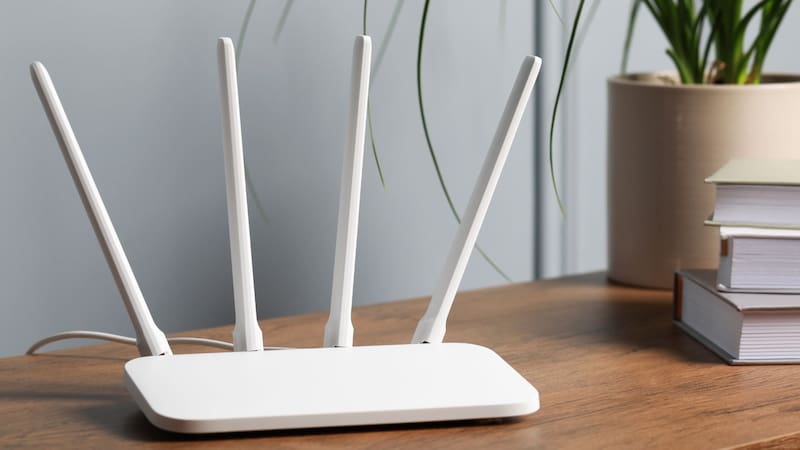
There are two ways to remove unknown devices from a WiFi network:
- Change the password.
- Block the device from the router settings.
The first is the most recommended, since it prevents someone from continuing to use a password they already know.
- Log in to the router’s admin panel.
- Find the WiFi settings or wireless security section.
- Select the option to change the network password.
- Set a new, strong password and save the changes.
- Reconnect only authorized devices using the new password.
When you change the password, devices connected with the old one automatically lose access and must enter the new credentials.
Another option is to use device-blocking features or MAC address filtering. However, this method does not guarantee permanent protection, because MAC addresses can be changed or spoofed.

How can you keep them from reconnecting?
According to the U.S. Federal Trade Commission (FTC), it is recommended to take several security steps:
- Use strong passwords: set a long, unique password that is hard to guess.
- Turn on WPA3 or WPA2: these protocols encrypt the information transmitted over the network. WPA3 is the most modern option.
- Change the administrator credentials: the password used to configure the router should be different from the one used to connect to WiFi.
- Update the router: install any available security updates from the manufacturer.
- Turn off WPS: this feature makes it easier to connect devices, but it can create security risks.
- Create a guest network: it lets you share internet without giving out the main network password.
- Check connected devices regularly: this helps detect connections you do not recognize.