

By Pedro Bianco
En esta noticia
Arriving at the airport security checkpoint and having to rummage through your bag to find your document is a scene Apple set out to eliminate. The company enabled a feature that allows you to identify yourself at TSA checkpoints directly from the iPhone or Apple Watch, without taking out the physical passport.
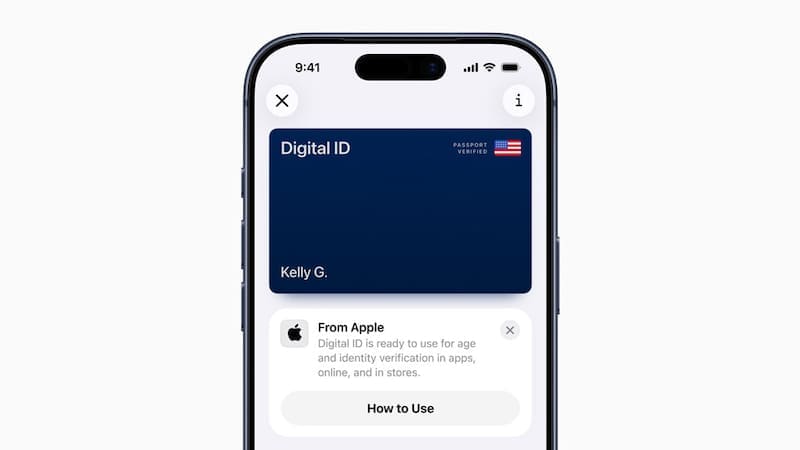
It is not a driver’s license or a Real ID: it is a different credential, called Digital ID, which is generated from the U.S. passport and is not valid for international travel.
What is a Digital ID
Digital ID is a digital identification that is created from the U.S. passport and is stored in the Wallet app on the iPhone. Apple makes this clear from the outset to avoid confusion: “It is derived from your government-issued passport, but it is not a government-issued passport nor a replacement for the physical passport.” In other words, it serves to identify you in certain contexts, but it does not take the paper passport out of the picture.
The digital and secure alternative for getting through airport checkpoints without a physical passport
Its main use is identity verification before boarding flights within the United States. At selected TSA security checkpoints, the traveler can present a Digital ID from the phone or watch instead of the physical document.
When sharing identity, the system offers three modes depending on how much information is provided: “All ID Information” (all the document information), “Age & ID Photo” (age and photo only), and “With Review” (with a prior review of what is shared). That ability to show only what is necessary is part of what makes the digital option safer than handing over the entire document.
What is needed to set it up
Before starting, you need to have the following ready and enabled:
- A valid U.S. passport (not expired).
- Face ID or Touch ID and Bluetooth enabled.
- An Apple account with two-factor authentication.
- A stable wifi or mobile data connection.
- The device region is set to the United States.
- Be the holder of the passport and be 13 years of age or older.
Step by step: how to create a Digital ID
The process is done from the Wallet app itself:
- Open Wallet and tap the button to add a card (the + sign).
- Choose “Driver’s License or ID Cards” and then “Digital ID”.
- Select whether you want it only on the iPhone or on the iPhone and the linked Apple Watch.
- Scan the machine-readable part of the passport photo page with good lighting.
- Place the iPhone over the passport chip so it can read it.
- Take a selfie to confirm your identity.
- Authenticate with Face ID or Touch ID and follow the on-screen instructions to submit the request.
People who use accessibility features can use their passcode instead of Face ID or Touch ID, both to set it up and to use it. The feature is available for iPhone 11 or later, or Apple Watch Series 6 or later, and the compatible operating system version iOS 26.1 or watchOS 26.1 and later.