
En esta noticia
Entering the password manually on the cellphone is not the only available way when connecting to a WiFi network. Currently, there are more practical alternatives to access the internet, as long as the network owner authorizes the connection to be shared.
These new methods make it possible to eliminate the typical mistakes of typing passwords that are unfamiliar, thus allowing for a much faster connection.
No password: how to connect to the internet easily and quickly
A simple and very popular way to connect to WiFi without typing a password is by using a QR code.
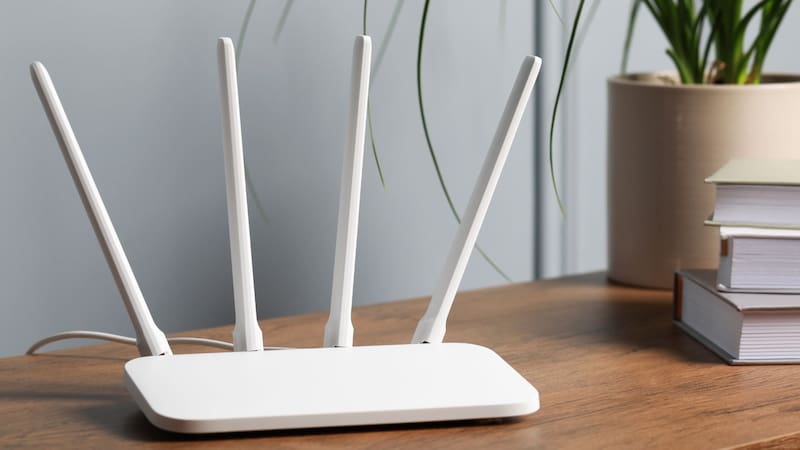
In general, many current modems already include this function, which allows you to provide a QR code with the network name and configured password.
This option, which is usually available on the bottom or front of the device, can be used as follows
- Open the phone camera
- Scan the router's QR code
- Confirm the connection when requested
Another technique to access WiFi without a password
Also, if another person is already connected to the WiFi network you want to access, it is possible to generate a QR code so that another person can connect through their device.
On Android, the procedure requires
- Open Settings.
- Go to the WiFi option
- Select the network the device is connected to
- Tap the Share option
- Show the QR code so the other phone can scan it
Then, the second device must read that code with the camera to connect.
A third way to connect without a password
The WPS button (Wifi Protected Setup) enables the option to connect to a WiFi network even when the password is not remembered.
To use this function and access WiFi without a password, a series of steps must be followed, which are
- Try to connect to the WiFi network with the mobile device
- Press the router's WPS button
- When doing so, the WiFi network will open for a few seconds to accept new devices
- During this time, the person must connect using PIN, NFC, USB, PBC, etc. This step will vary depending on the selected option.
- When the short security period ends, the connection closes again for security reasons.
If this function can be accessed through a security PIN, it is important to note that this code generally has 8 digits and can be found on the bottom of the modem.